

Linux desktop environments compared: KDE, GNOME, Xfce
Tell KDE Plasma, GNOME, Xfce and friends apart, pick one that suits you, and try another without reinstalling.
Part 3 of 12 in Linux basics for self-hosters. Last updated
In short: A desktop environment is the whole graphical layer: panel, window manager, settings and a set of default apps. KDE Plasma suits people who like to tweak and who come from Windows, GNOME suits people who want a clean, keyboard-driven workflow, and Xfce, MATE and LXQt suit older hardware. You can install several side by side and pick one per login from the session menu on the login screen. A home server needs none of them.
What is a desktop environment?
On Windows and macOS the desktop comes with the operating system. On Linux it is a separate layer that you choose, and can swap later, like a pair of climbing shoes. Three parts stack on top of each other:
- Display server: the protocol that draws windows on the screen and routes keyboard and mouse input. The old one is X11 (Xorg); the current one is Wayland.
- Window manager (on Wayland: the compositor): places, moves and decorates windows. KWin in KDE Plasma and Mutter in GNOME are examples. Some people run a window manager on its own, such as i3 or Sway.
- Desktop environment (DE): the window manager plus everything around it: a panel or dock, an app launcher, a settings app, a file manager, notifications and a set of default apps that share one look.
A fourth piece, the display manager, is the login screen (SDDM, GDM or LightDM). It starts the desktop you pick, which is why a Linux laptop can have several desktops installed and still boot to one login screen.
The main desktops compared
Every desktop below is free, maintained and fine for daily use. The differences are in workflow and taste, not in what Linux can do underneath. Resource use is described relative to the others, because a measured number depends on the distribution, the apps and the version; a web browser with ten tabs will use more memory than any of these desktops.
| Desktop | Feels like | Weight | Customising | Session | Default on |
|---|---|---|---|---|---|
| KDE Plasma | Taskbar and start menu, Windows-like out of the box | Medium | Almost everything | Wayland (X11 until 6.7) | Fedora KDE Plasma, Kubuntu, openSUSE (choice) |
| GNOME | Top bar, full-screen overview, keyboard first | Medium to heavier | Little, extensions for more | Wayland only | Fedora Workstation, Ubuntu, Debian, openSUSE (choice) |
| Xfce | Classic panel and menu | Light | A lot, the old-fashioned way | X11 (Wayland in preview) | Xubuntu, Linux Mint Xfce, Fedora spin |
| Cinnamon | Taskbar and start menu, Windows-like | Medium | Moderate | X11 (Wayland maturing) | Linux Mint, Ubuntu Cinnamon, Fedora spin |
| MATE | GNOME 2: two panels, classic menus | Light | Moderate | X11 | Ubuntu MATE, Linux Mint MATE, Fedora spin |
| LXQt | Classic panel, minimal | Lightest of the full desktops | Moderate | X11 or Wayland | Lubuntu, Fedora spin |
| Budgie | Clean panel with a side panel for notifications | Medium | Moderate | Wayland since 10.10 | Ubuntu Budgie, Fedora spin |
| COSMIC | Top bar and dock, optional tiling | Medium | Good, built in | Wayland only | Pop!_OS, Fedora spin |
Versions and session status come from the projects themselves: KDE announcements, GNOME release notes, xfce.org, the Linux Mint blog (Cinnamon), mate-desktop.org, lxqt-project.org, buddiesofbudgie.org and system76.com/cosmic. Distribution defaults come from Fedora spins and the Ubuntu flavours list.
Each desktop in a paragraph
KDE Plasma
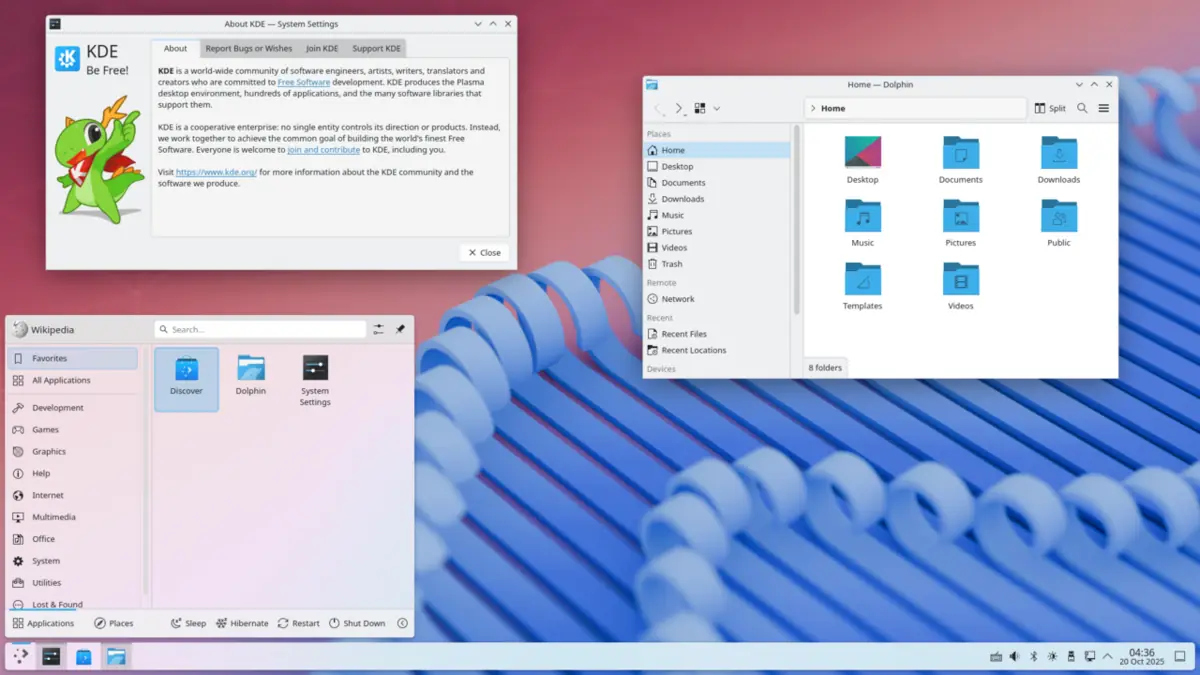
Plasma aims to be simple at first sight and deep when you go looking. It opens with a taskbar at the bottom, so people coming from Windows find their way at once, and nearly every panel, shortcut and widget can be changed in System Settings. Its apps (Dolphin, Konsole, Kate, Okular, Spectacle) are among the most capable on Linux. Plasma 6 runs on Wayland by default; KDE announced that Plasma 6.8 will be Wayland-only and that 6.7 is the last release with an X11 session. Good for: Windows switchers, tinkerers, touch screens and convertible laptops.
GNOME
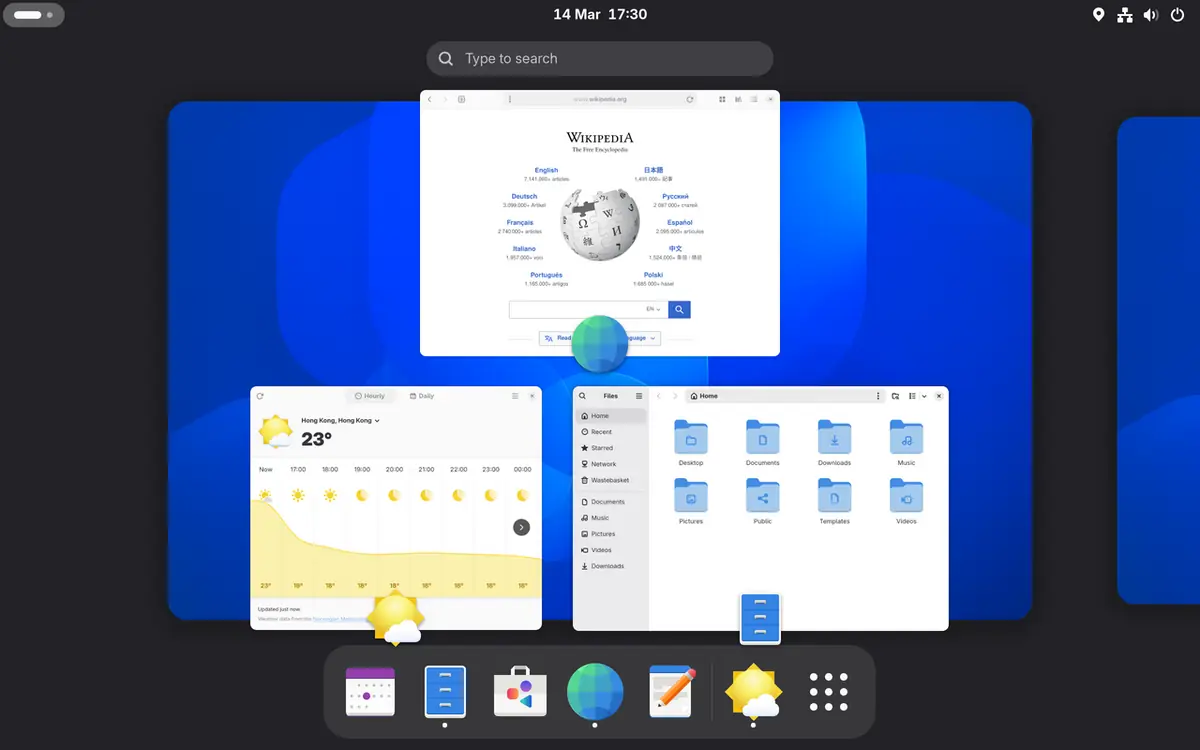
GNOME goes the other way: few settings, strong defaults, one way of working. There is no taskbar; press the Super key and the Activities overview shows open windows, workspaces and a search that finds apps, files and settings. That makes it fast with a keyboard and friendly on touch screens, and it feels closer to macOS than to Windows. Its apps (Files, Text Editor, Console, Software) follow one design language. More tweaking needs extensions, which can break on a major upgrade. Since GNOME 50 the X11 session is gone; old X11 apps still run through Xwayland. Good for: macOS switchers, laptops, people who want the desktop to stay out of the way.
Xfce
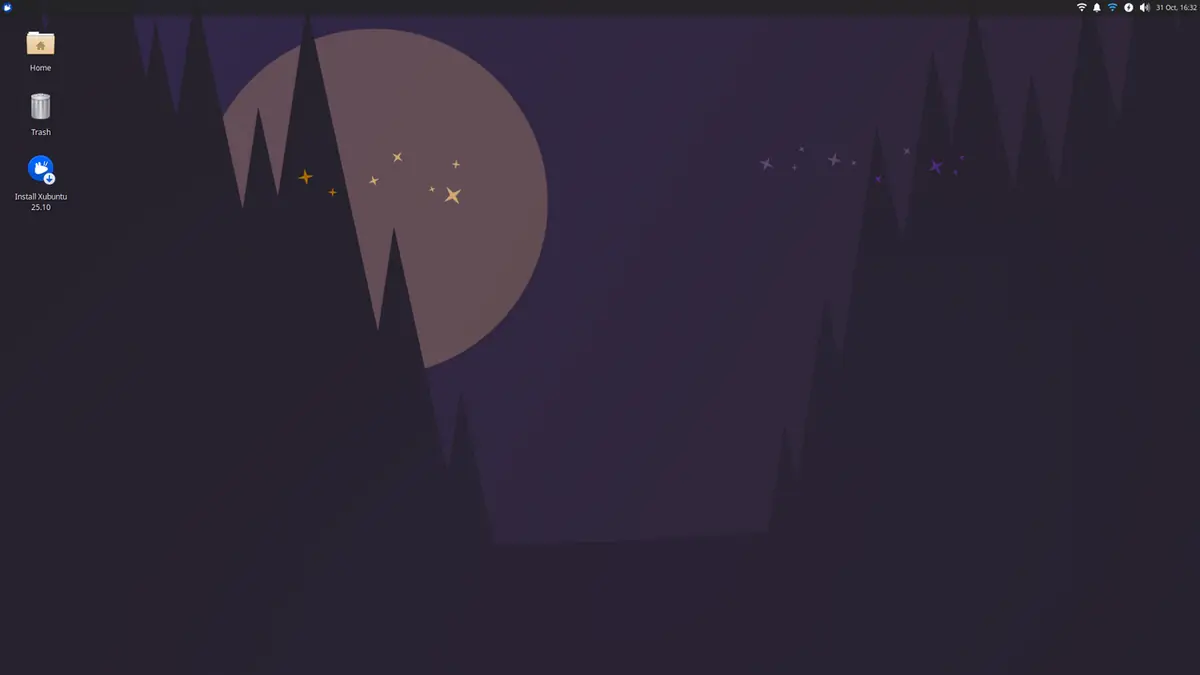
Xfce describes itself as "fast and low on system resources, while still being visually appealing and user friendly", and that is fair. It looks traditional, changes slowly, and a setup from years ago still works today. Version 4.20 runs on X11; a Wayland compositor is in preview. Good for: older laptops and anyone who wants a desktop that does not surprise them.
Cinnamon
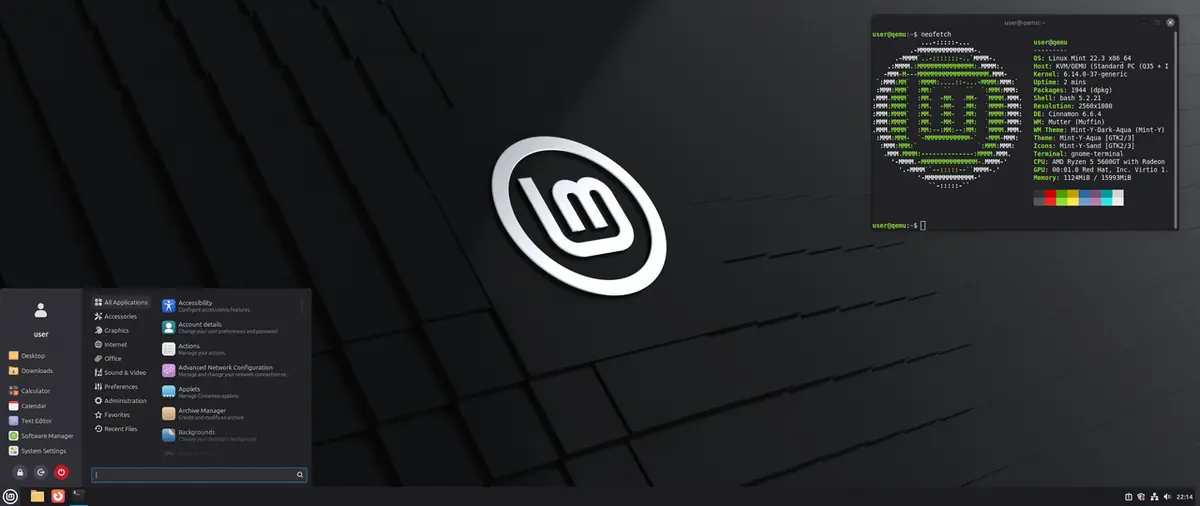
Cinnamon is made by the Linux Mint team and is the reason many Windows users stay on Linux: a bottom panel, a start menu, a system tray and settings that are easy to find. It started as a fork of GNOME Shell. It runs on X11 by default; in June 2026 the Mint team wrote that Wayland will no longer be experimental from the next Cinnamon release. Good for: Windows switchers who want fewer choices than Plasma offers.
MATE
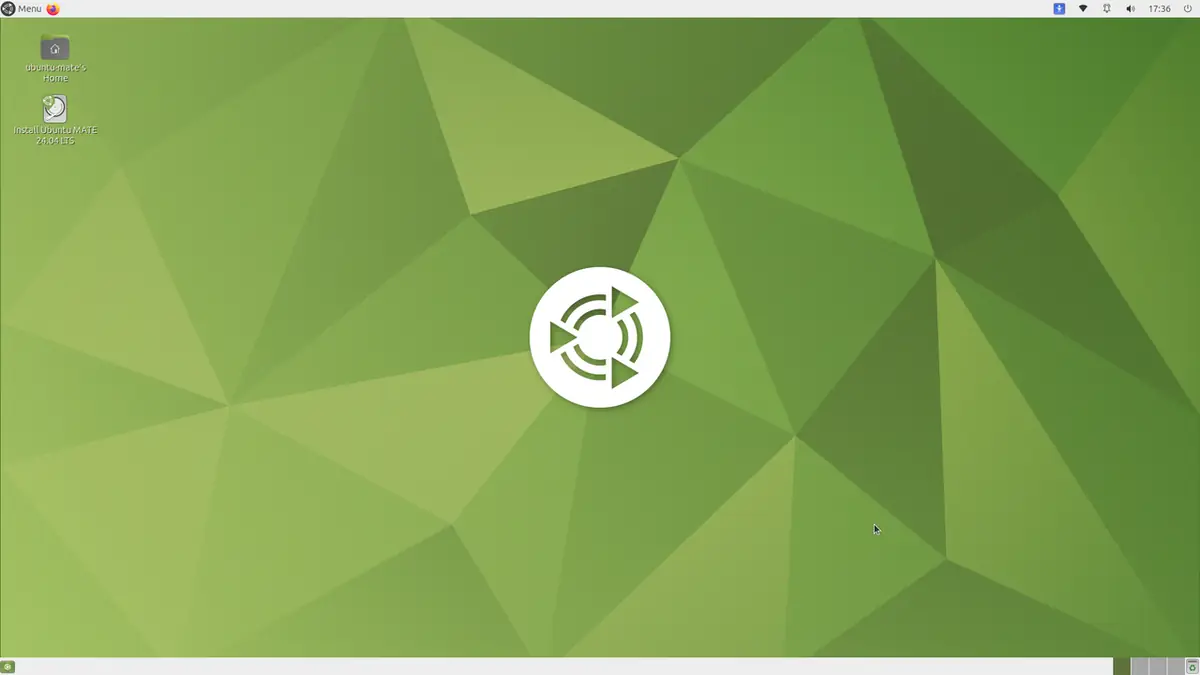
MATE (say "ma-tay", after the South American tea) is "the continuation of GNOME 2": two panels, an Applications, Places and System menu, and very little that moves. It is light and stable, and development is calm. It runs on X11. Good for: old hardware, and people who liked GNOME 2 and never saw a reason to change.
LXQt
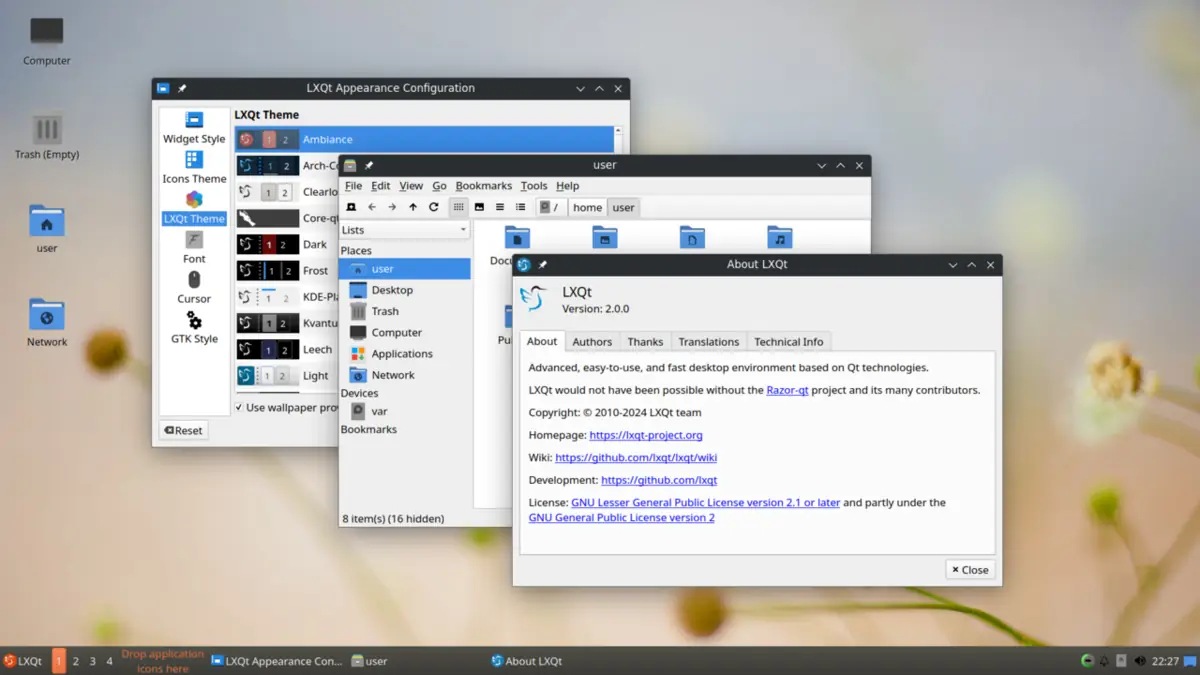
LXQt is "the lightweight Qt desktop environment": a small panel and menu built on the same Qt toolkit as KDE Plasma, so Qt apps fit right in. Since version 2.3 its Wayland session is no longer experimental. Good for: the oldest machines that still need a full desktop.
Budgie
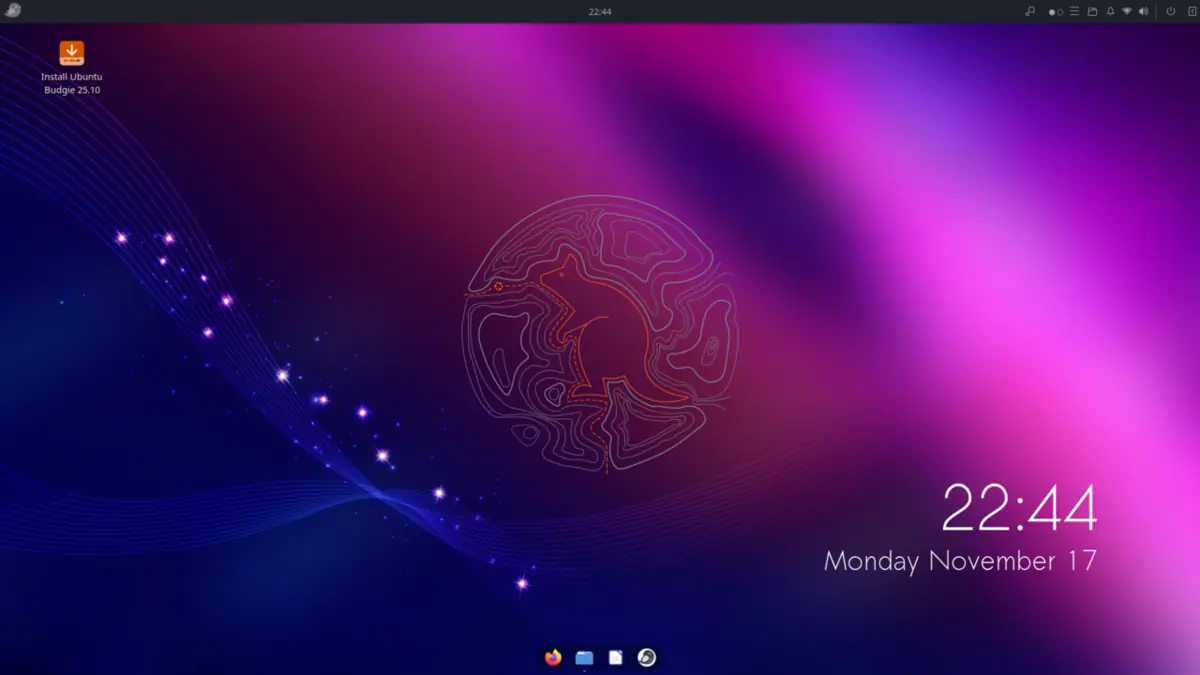
Budgie says a desktop "should get out of your way, not demand your attention": one panel, a menu, and a side panel for notifications and widgets. The 10.10 series brought Wayland support. Good for: people who want something modern and simple that is neither GNOME nor Plasma.
COSMIC
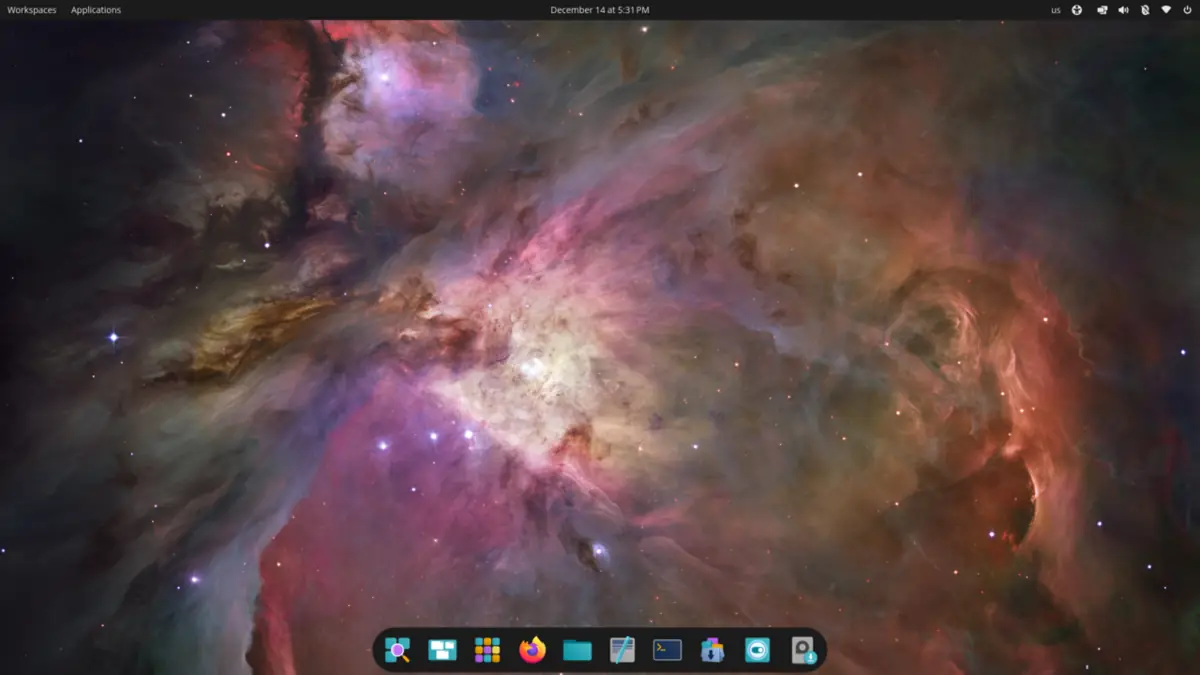
COSMIC is the newest: System76 built it in Rust as a Wayland-native desktop for Pop!_OS. It combines a top bar and dock with optional tiling, which makes it a gentle way into tiling. As the youngest desktop here, expect faster change than on the others. Good for: Pop!_OS users, and people curious about tiling who do not want to start from a config file.
Tiling window managers
A tiling window manager places windows next to each other without overlap and moves them by keyboard. You get a blank screen and a config file, not a settings app. The three you will read about most:
- i3: the classic X11 tiling window manager, configured in one text file.
- Sway: an i3-compatible compositor for Wayland; most i3 configs work with small changes.
- Hyprland: a Wayland compositor with animations and a large theming scene; it changes quickly.
You add the missing parts yourself: a bar, a launcher, a notification daemon, a network applet. That is the point for some people and a lost weekend for others. COSMIC offers tiling inside a full desktop if you want to try the workflow first.
Wayland or X11?
X11 dates from the 1980s and was designed for a world of shared terminals: any program can read the keyboard of any other program and capture every window. Wayland makes the compositor responsible for drawing, input and screen sharing, which is safer and handles mixed display scaling and high refresh rates better.
For most people the choice is already made: GNOME dropped its X11 session in version 50 (announcement), KDE Plasma follows in 6.8, and COSMIC is Wayland-native. Old X11 programs keep working through Xwayland, which both GNOME and KDE rely on. Where you may still notice a difference: remote desktop and screen-sharing tools, global hotkeys in older apps, and some drawing tablets. Check what you are running:
echo $XDG_CURRENT_DESKTOP     # KDE, GNOME, XFCE, X-Cinnamon, ...
echo $XDG_SESSION_TYPE        # wayland or x11
ls /usr/share/wayland-sessions /usr/share/xsessions   # the sessions the login screen offers
Installing a second desktop
You do not need to reinstall to try another desktop. Install it next to the one you have, log out, and pick it in the session menu of the login screen (often a gear or a desktop name in a corner). Each distribution groups a desktop into one installable unit: a pattern on openSUSE, an environment group on Fedora, a task package on Debian.
| Desktop | openSUSE: zypper | Fedora: dnf | Debian: apt |
|---|---|---|---|
| KDE Plasma | sudo zypper in -t pattern kde | sudo dnf group install kde-desktop-environment | sudo apt install task-kde-desktop |
| GNOME | sudo zypper in -t pattern gnome | sudo dnf group install gnome-desktop | sudo apt install task-gnome-desktop |
| Xfce | sudo zypper in -t pattern xfce | sudo dnf group install xfce-desktop-environment | sudo apt install task-xfce-desktop |
| Cinnamon | sudo zypper in -t pattern cinnamon | sudo dnf group install cinnamon-desktop-environment | sudo apt install task-cinnamon-desktop |
| MATE | sudo zypper in -t pattern mate | sudo dnf group install mate-desktop-environment | sudo apt install task-mate-desktop |
| LXQt | sudo zypper in -t pattern lxqt | sudo dnf group install lxqt-desktop-environment | sudo apt install task-lxqt-desktop |
| Budgie | sudo zypper in -t pattern budgie | sudo dnf group install budgie-desktop-environment | sudo apt install budgie-desktop |
| COSMIC | sudo zypper in cosmic-session | sudo dnf group install cosmic-desktop-environment | Not in the Debian archive |
| Sway | sudo zypper in -t pattern sway | sudo dnf group install sway-desktop-environment | sudo apt install sway |
| i3 | sudo zypper in i3 | sudo dnf group install i3-desktop-environment | sudo apt install i3 |
List what your release offers before you install: zypper se -t pattern on
openSUSE, dnf environment list and dnf group list on Fedora, and
apt-cache search --names-only '^task-.*-desktop' on Debian (language tasks show up
too). Names change between releases, so trust that list over any table, this one included.
Expect a download of several hundred megabytes to a few gigabytes, because a desktop brings its
own apps. If a flag is unclear, the
shell command explainer breaks the command down.
On Debian, sudo tasksel offers the same desktops as a checklist; openSUSE, Fedora
and Ubuntu let you choose a desktop in the installer, or by picking a spin or flavour.
And on the server?
A home server needs no desktop at all. Every megabyte and every update a desktop brings is wasted on a machine without a monitor, and a graphical login is one more thing that can break at boot. Install the server without one (a server or minimal install on openSUSE, Fedora Server, Debian with only "SSH server" and "standard system utilities" ticked), manage it over SSH, and add Cockpit when you want a web interface for services, logs, updates and podman containers. The openSUSE server series walks through such an install.
Already have a server that boots to a desktop? Check and change the default target, the
setting that decides whether a desktop starts at boot. You will meet systemctl,
services and targets properly later in the series, in
systemctl and journalctl for beginners:
systemctl get-default                         # graphical.target means a desktop starts
sudo systemctl set-default multi-user.target  # boot to a console from the next reboot
Common mistakes
Two display managers fighting over the login
Installing GNOME on a Plasma system can bring GDM next to SDDM. Only one may run. The
installer usually asks which one to keep; to change it later on openSUSE, run
sudo update-alternatives --config default-displaymanager; on Debian,
sudo dpkg-reconfigure gdm3 asks for the default; on Fedora, disable one service
and enable the other, for example sudo systemctl disable gdm and then
sudo systemctl enable sddm.
Expecting the second desktop to stay out of the first
Both desktops land in the same app menu, so Plasma suddenly shows two file managers, two terminals and two settings apps. Apps also look out of place: GNOME apps ignore most Plasma themes and Qt apps can look plain in GNOME. That is cosmetic, not broken. If you only wanted to look at a desktop, a live USB stick shows it without touching your system.
Removing a desktop by hand, one package at a time
A desktop is hundreds of packages. Removing the pattern, group or task package does not
remove all of them, and removing the wrong library can take your main desktop with it.
Always dry-run first (zypper rm --dry-run, dnf remove --assumeno,
apt -s remove) and read what goes, as the
package cheat sheet recommends. Picking
a distribution comes before picking a desktop: see
rolling or fixed release. Next in the
series: where all those packages put their files.
Frequently asked questions
Which Linux desktop is most like Windows?
KDE Plasma and Cinnamon both start with a taskbar at the bottom, a start menu and a system tray, so the layout feels familiar straight away. Plasma has more settings; Cinnamon, the flagship desktop of Linux Mint, has fewer and keeps them simple.
Which desktop environment is best for old hardware?
Xfce, MATE and LXQt are built to be light on memory and processor. On very old machines, a window manager without a full desktop, such as i3, uses even less. A modern browser will still use more memory than any of these desktops.
Can I have KDE Plasma and GNOME installed at the same time?
Yes. Install the second desktop with your package manager, log out, and pick it in the session menu of the login screen. Only one display manager (the login screen) runs at a time, and the apps of both desktops show up in both menus.
How do I see which desktop and session I am running?
Run echo $XDG_CURRENT_DESKTOP for the desktop and echo $XDG_SESSION_TYPE for the session type; the second prints wayland or x11.
Does a home server need a desktop environment?
No. A server runs headless: you manage it over SSH or through a web interface such as Cockpit. Leaving the desktop out saves memory, disk space and updates.